Hired in ten minutes.
Working by tomorrow morning.
There is no setup project. You choose a role, connect the accounts it needs, and start handing things over. It drafts first, sends when confident, holds when it isn’t, and shows you the record.
Choose
Pick the role: Chief of Staff, Executive Assistant, Personal Assistant, or Recruiter. Every role runs on the same platform.
1 minuteOnboard
Connect your email and calendar. Your employee gets its own address on Essentials and its own phone number on Standard. Teach it a few standing rules.
About 10 minutesDelegate
Chat, forward an email, or set a workflow that runs for weeks. It drafts first, sends when confident, and holds anything it is unsure about.
From day oneReview
A morning brief every day, approvals when it needs you, and a weekly account of every action and the time it gave back.
Every morningWhat setup creates
A working employee that already understands your calendar, your inbox and the people you talk to most: reading your mail, drafting replies for your approval, and delivering your morning brief. That is the free plan, no card.
What comes with paid plans
Its own channels. An @assistant.atona.ai address on Essentials, a phone number for texts and calls plus the meeting notetaker on Standard, WhatsApp on Pro. Your personal email and number always stay personal.
Say it once. It’s handled.
Chat, forward an email, or describe a plan in plain language. Things people delegate in the first week:
One employee across email, calls, texts and calendar, and the record of what it did today.Atona for iOS · example data
You approve. It records.
Two identities, one rule. From your own inbox, nothing goes out until you approve it. From its own address and number, it acts on its own with known contacts and holds anything new or sensitive.
Drafts first, then sends
From your own inbox, nothing goes out until you approve it. From its own address it sends when confident and holds the draft when it isn’t.
Its own identity, never yours
A dedicated email address, phone number and WhatsApp, separate from your personal ones. You are CC’d on every message.
Some mail never reaches AI
Anything that looks financial, medical or legal is recognised and held back before it can be sent for processing.
One switch pauses everything
Pause all activity with one toggle, or turn email, texts and calls on and off channel by channel.
A record of every action
Every reply drafted, sent or held is there to review, with the reason it made that call, and a weekly account of time saved.
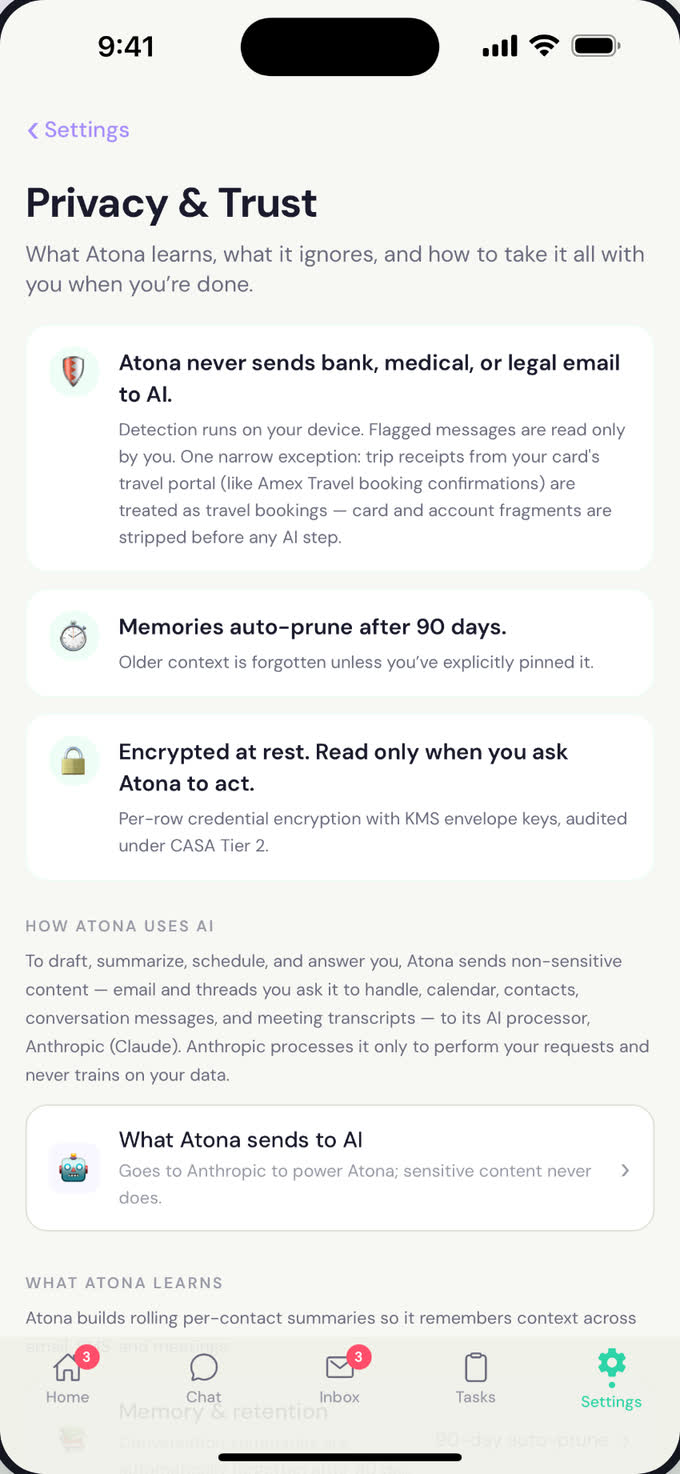
The privacy controls in the app: what never reaches AI, how long memory lasts, and how data is kept.Atona for iOS · example data
One platform. Every role.
You hire employees. Each works in a workspace. Every workspace runs on Atona: one memory, approvals and the action record, its own identity and channels. That is why any role works on any plan.
Every part, explained
Fifteen short guides on exactly what your employee does in each channel, what it will not do, and the controls you have.
Before you start
How long does setup take?
Under ten minutes for most people. Connecting email is a secure sign-in that takes about thirty seconds; the slowest part is deciding which standing rules to teach first.
What will it never do?
Auto-reply to anything sensitive: banking, medical, legal, government, identity. Send from your personal address without approval. Reply to a brand-new contact without holding the draft for you first. Share any of your data with another user.
Can I pause it?
One toggle stops everything until you turn it back on. Each channel also has its own switch, and you can require approval for any contact, any topic, or everything.
Where does it work?
iOS and the web today. Android is coming soon. A Mac bridge adds iMessage on Standard and above.
Which role should I start with?
If you are not sure, an Executive Assistant: it touches the most channels on day one. Everything it learns carries over, because every role shares one memory.
Make your first AI hire today.
Free to start. Your employee is working within ten minutes.
Android coming soon.